If you see the message “This item is not available” (without mentioning a specific country) when downloading the app from Google Play, the issue is usually not related to your location. It is most often caused by Google account settings or content restrictions.
How to Fix the Issue:
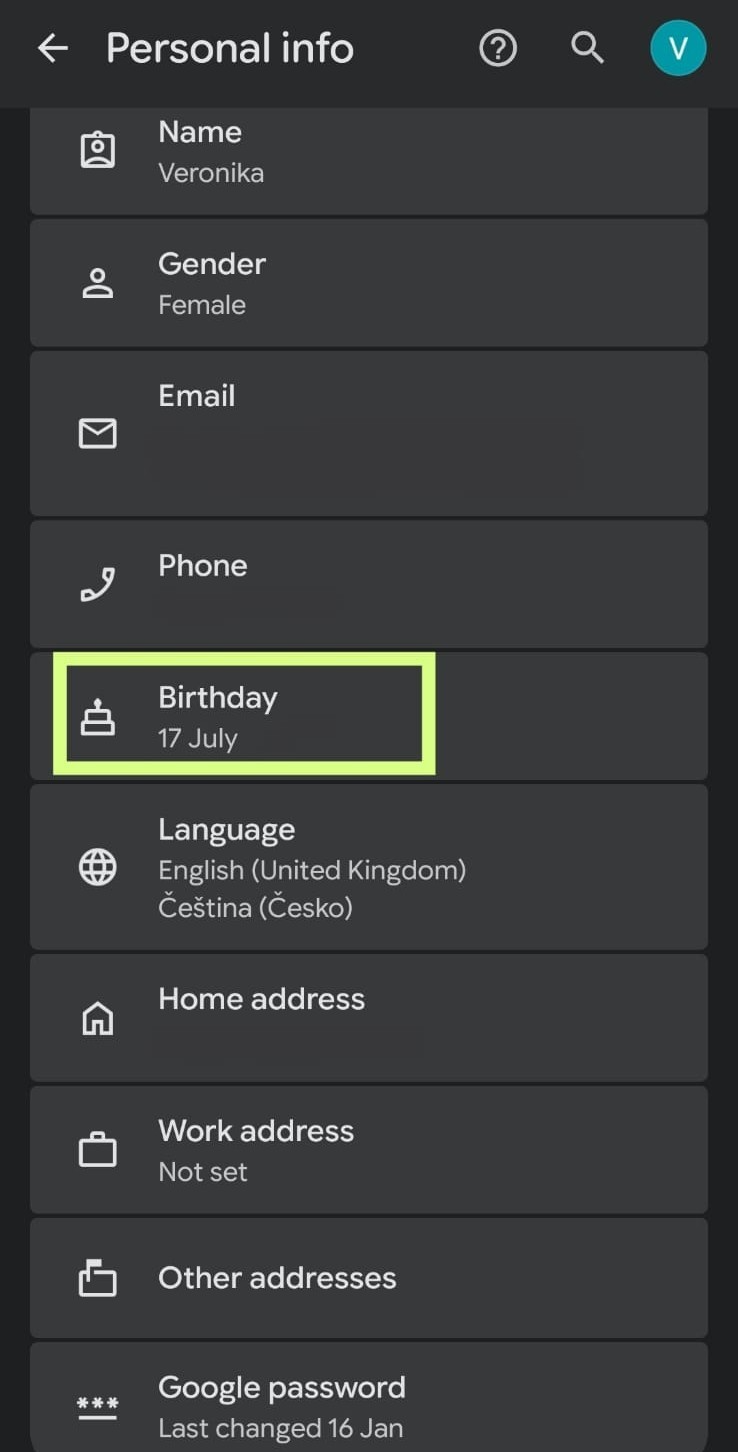
- Check your date of birth in your Google account
- Open Gmail
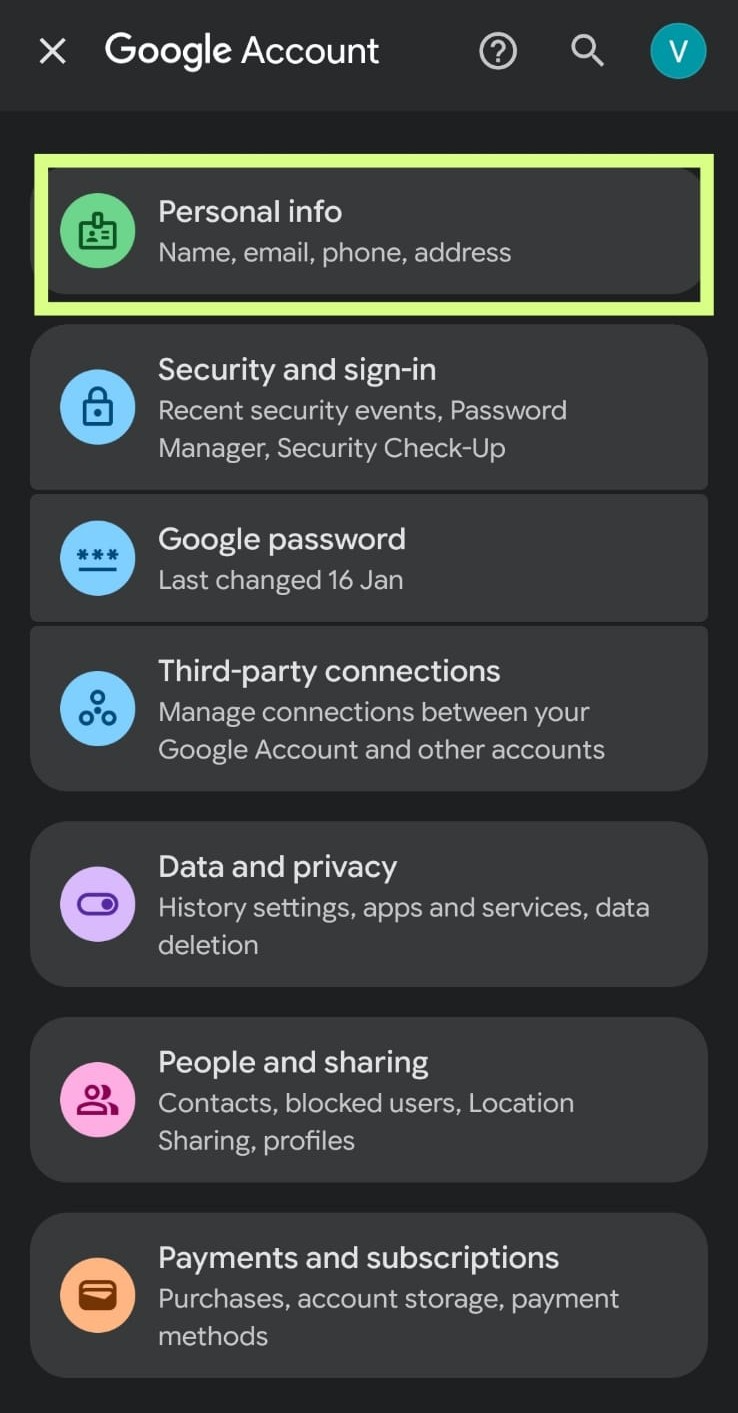
- Tap your profile picture → Manage your Google Account
- Open the Personal info section
- Make sure your date of birth is set correctly
Check parental controls in Google Play
Steps:
- Open the Google Play app
- Tap your profile picture in the top right corner
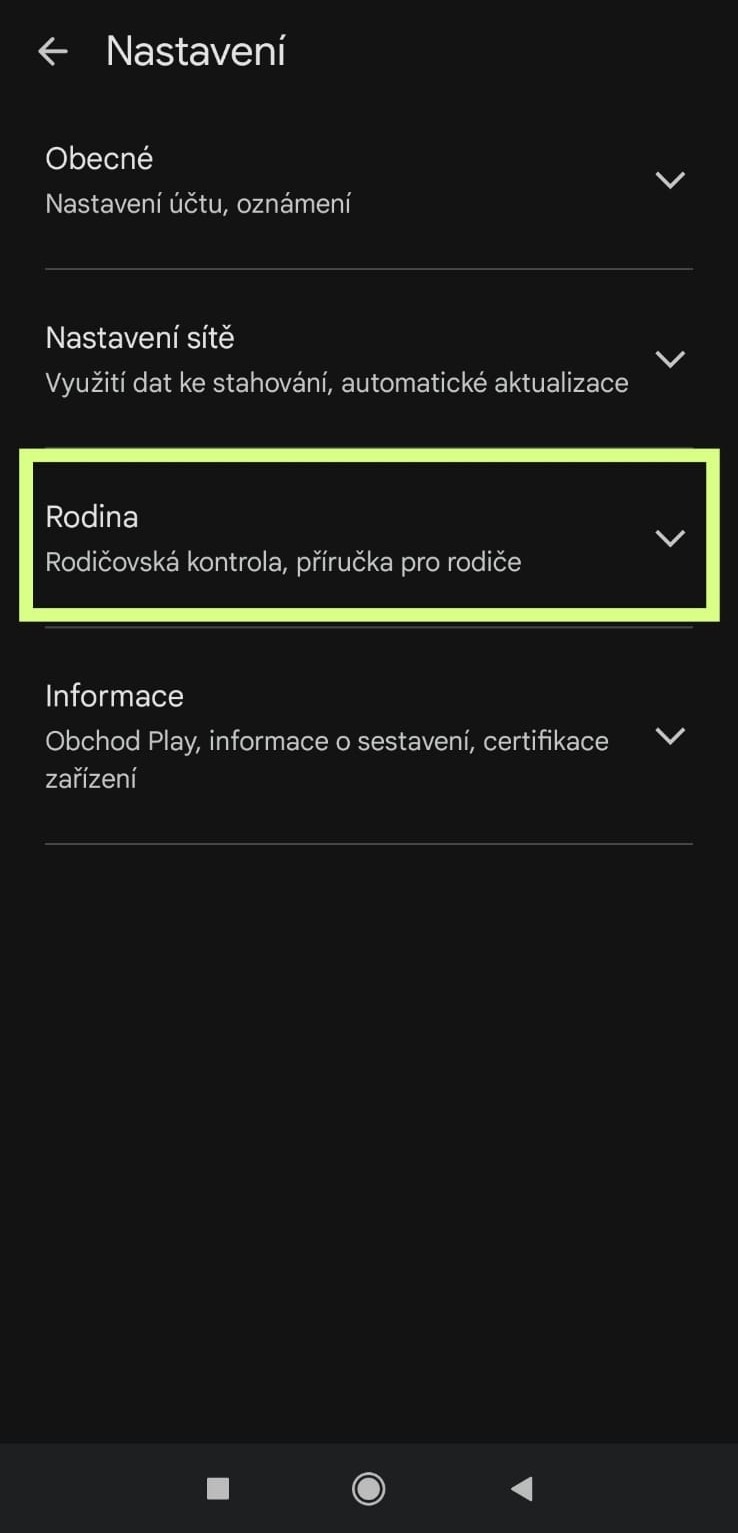
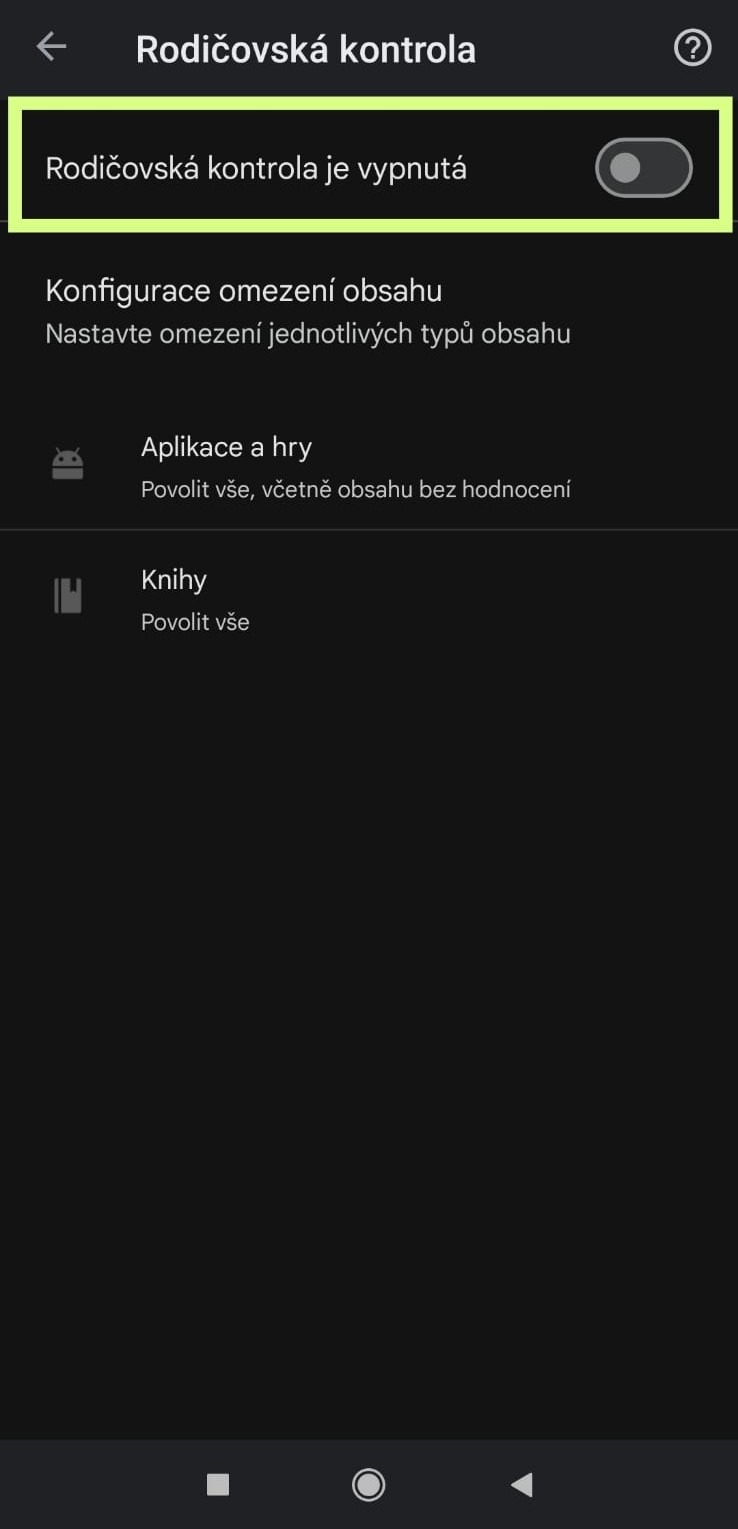
- Go to Settings → Family → Parental controls
- Make sure parental controls are turned off
3. Verify your age in Google Play
If parental controls are turned off and the app is still unavailable, the issue may be related to unverified age on your Google account. Age verification is usually located in Google Play settings, most commonly under:
- Settings → Family
- Or Settings → Account
Note: The location of age verification may vary depending on your device and account. After successful verification, the option may disappear from the settings.
If the Age Verification Option Is Not Visible
If you cannot find the age verification option, it may mean that Google Play is evaluating your age internally but does not currently provide a way to trigger the verification manually.
In this case, we recommend trying the following:
- Restart the Google Play app or your device
- Clear Google Play data and cache
- Sign out of your Google account and sign back in
- Open the app page directly in Google Play
- Try installing another app with an 18+ age rating
Note: For newly created Google accounts, it may sometimes help if the account shows basic activity, such as regular use of Google Play. However, this is not guaranteed and is not a formal requirement.
If you are still unable to download the app after these steps, please contact us via the form below and include:
Your phone model (e.g. iPhone 14, Samsung S23)
Your operating system version (Android 12 / iOS 18)
We will review your case and help you find a solution.