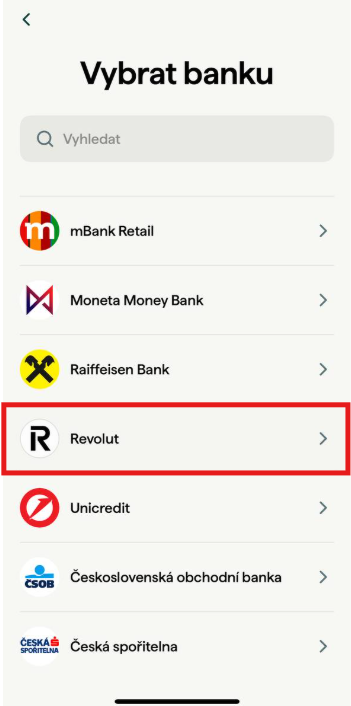
Select your bank
From the list of available banks, find Revolut and select it.
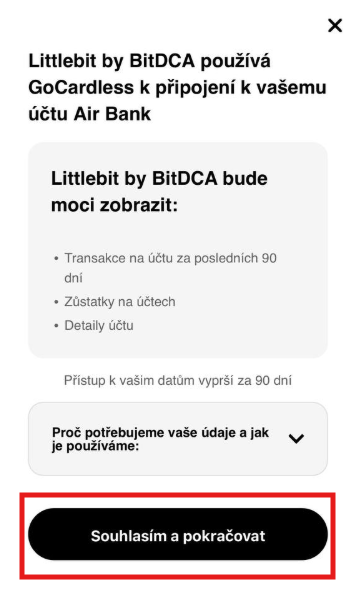
Grant access to your transaction history
For the Littlebit app to function correctly and save based on your card payments, it is necessary to grant access to information about card transactions on your bank account.
There is no need to worry. We do not gain access to your money, but only to information regarding your card payments. This allows us to calculate how much should be auto-saved.
This access:
Is not used to send payments, but exclusively to read transaction statements.
Is time-limited to 179 days – after this period expires, the app will prompt you to renew your consent.
Is essential for completing registration – without it, you cannot move forward.
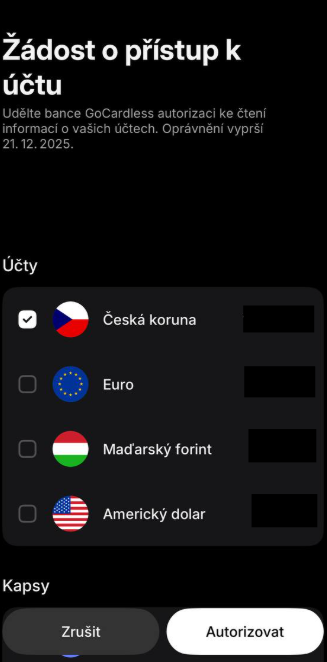
Select accounts for card transaction tracking
Use the toggles to choose which accounts you want to share card transaction information from. The Littlebit app will filter card payments on the selected accounts and calculate how much should be auto-saved.
If you would like to save from multiple Revolut accounts that you use for card payments, simply select them and click “Authorise.”
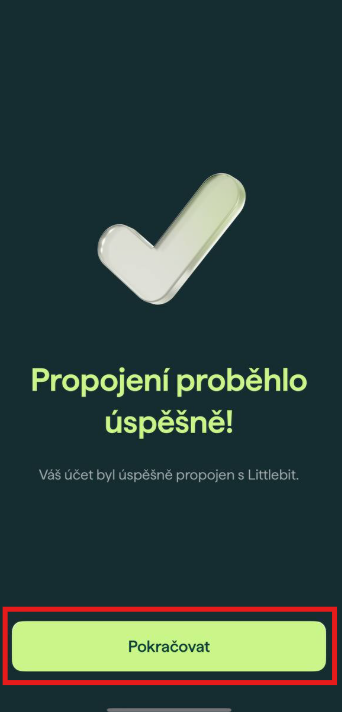
That's it!
Your bank account has been successfully connected to the Littlebit app. Now just click “Continue” and you can start saving with Littlebit.
What if an error message appears?
If an error message appears after this step, we recommend checking your connected accounts in the Littlebit app (Settings → My bank accounts) to see whether the account was added despite the error message. This can sometimes happen due to a weaker signal or a slower response between the app and internet banking.
If you can see the account, it means the connection was successful and everything is working correctly. If you do not see the added account, please try the following steps:
- Close the Littlebit and Revolut apps
- Make sure you have a stable and fast internet connection
- Restart your phone and repeat the process following the same steps