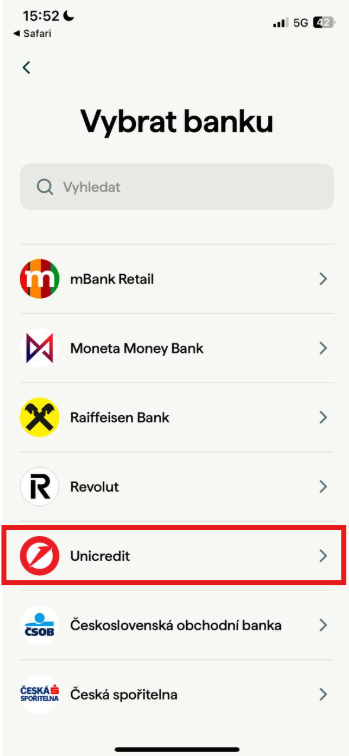
Select your bank
From the list of available banks, find Unicredit and select it.
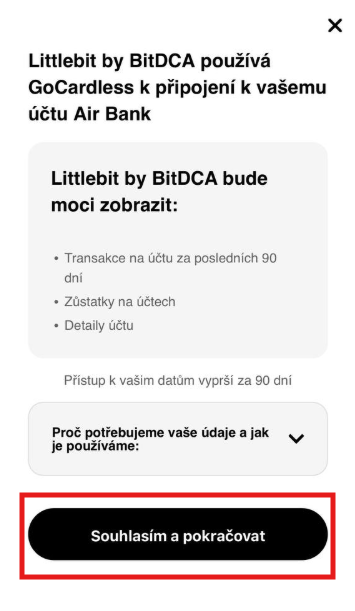
Grant access to your transaction history
For the Littlebit app to function correctly and save based on your card payments, it is necessary to grant access to information about card transactions on your bank account.
There is no need to worry. We do not gain access to your money, but only to information regarding your card payments. This allows us to calculate how much should be auto-saved.
This access:
Is not used to send payments, but exclusively to read transaction statements.
Is time-limited to 179 days – after this period expires, the app will prompt you to renew your consent.
Is essential for completing registration – without it, you cannot move forward.
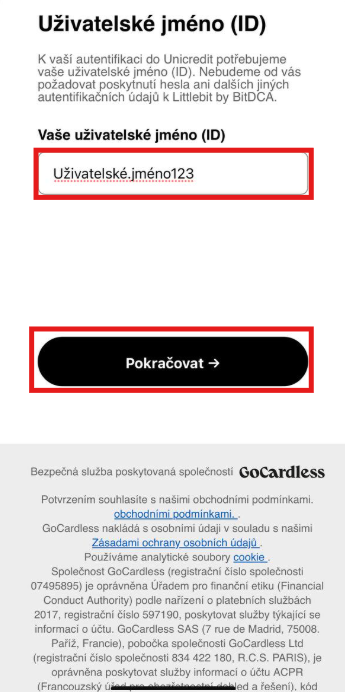
Enter your username
In the field, enter the username you normally use to log in to your internet banking. To continue, click “Continue.”
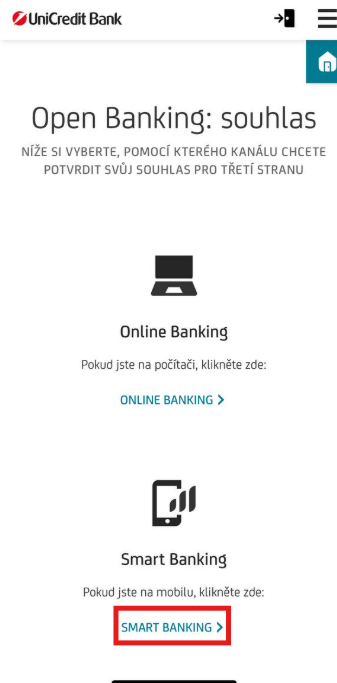
Select login via Smart Banking
Since Littlebit is exclusively a mobile app and cannot be accessed on a computer, we assume you are adding your account via your phone. Please select “SMART BANKING.”
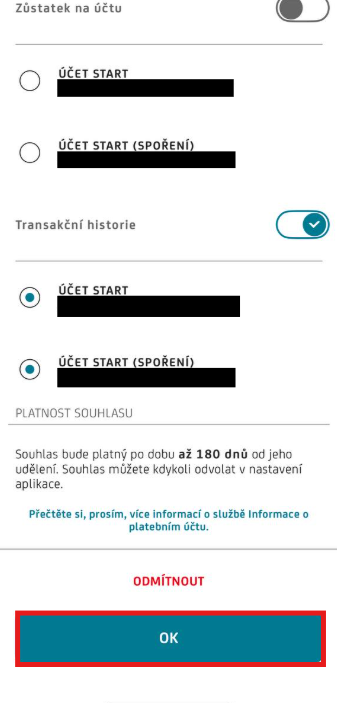
Select accounts for card transaction tracking
Use the toggles to choose which accounts you want to share card transaction information from. The app will access these accounts, filter card payments, and calculate how much should be auto-saved. You can add as many accounts as you like and combine different banks. The choice is entirely yours.
If you have multiple UniCredit accounts that you use for card payments and would like to save from them, simply select them.
Once you have selected the accounts, click “OK.”
That's it!
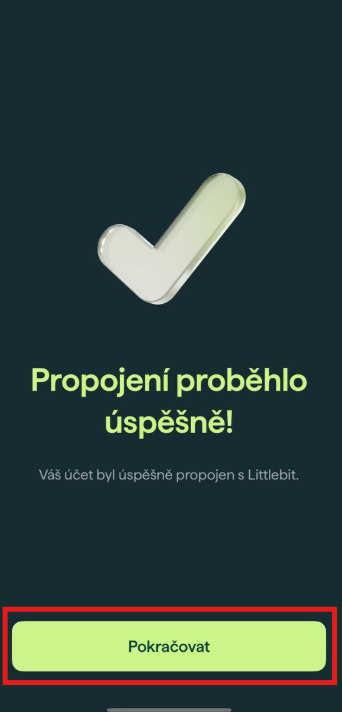
Your bank account has been successfully connected to the Littlebit app. Now just click “Continue” and you can start saving with Littlebit app.
What if an error message appears?
If an error message appears after this step, we recommend checking your connected accounts in the Littlebit app (Settings → My bank accounts) to see whether the account was added despite the error message. This can sometimes happen due to a weaker signal or a slower response between the app and internet banking.
If you can see the account, it means the connection was successful and everything is working correctly. If you do not see the added account, please try the following steps:
- Close the Littlebit and Smart Banking apps
- Make sure you have a stable and fast internet connection
- Restart your phone and repeat the process following the same steps